
This article is for bantu Community Portal Users
Before you begin:
Things to take note:
- You need to verify your account before you can sign up for a project
- You may need a tour of the Community Portal before you proceed
Instructions:
1. Visit the Community Portal and click 'Sign In'
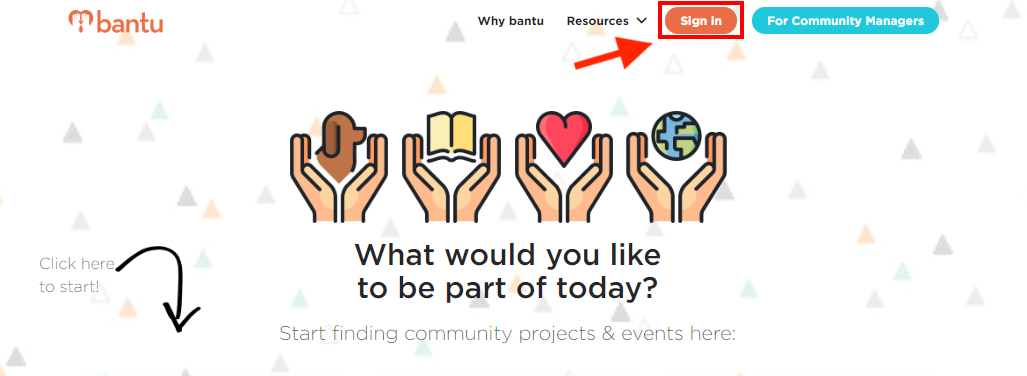
2. Enter your email address and click 'Get Started'
- This email address should be valid and belongs to you
- If you are a new user, continue reading from Step 3
- If you are an existing user, you just have to enter your password to login, as seen below:
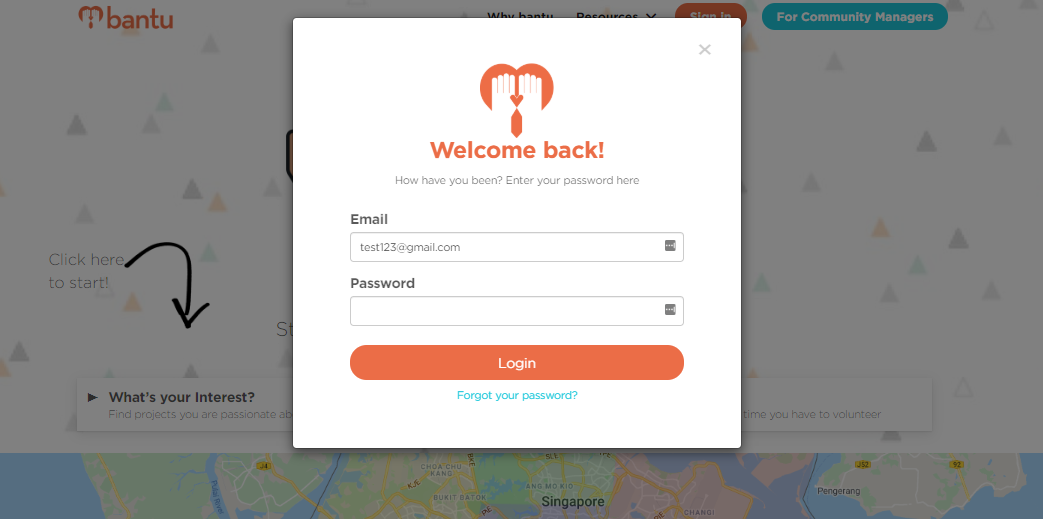
3. Fill in your first name, last name and password and mobile number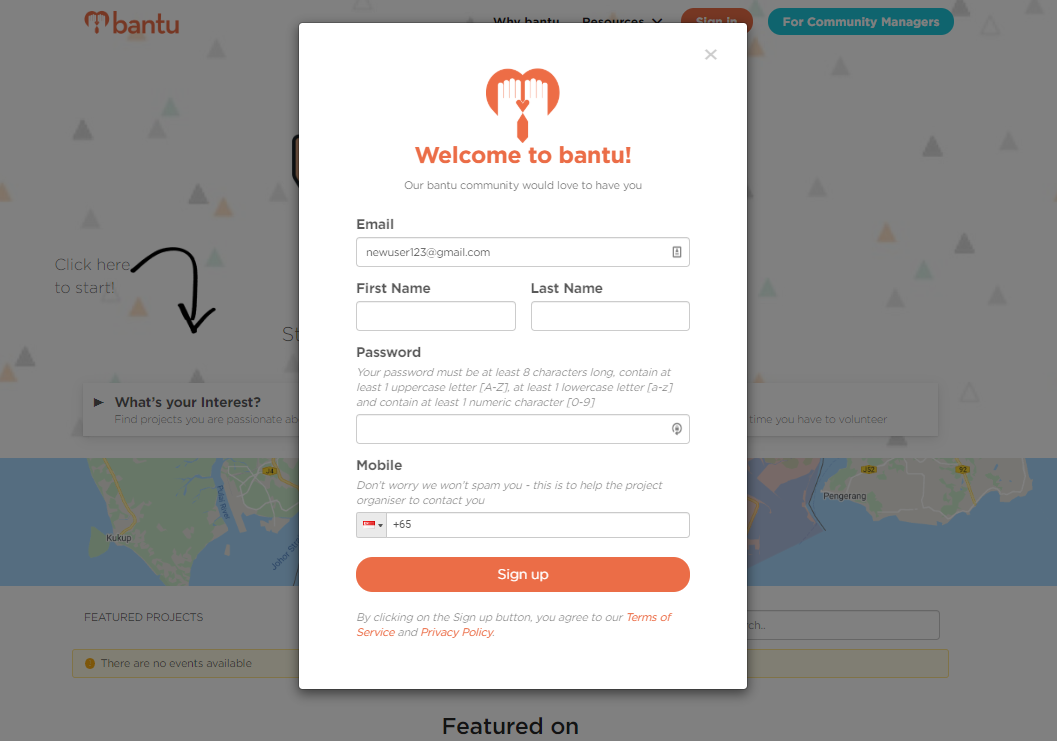
- Once done, click 'Sign Up'
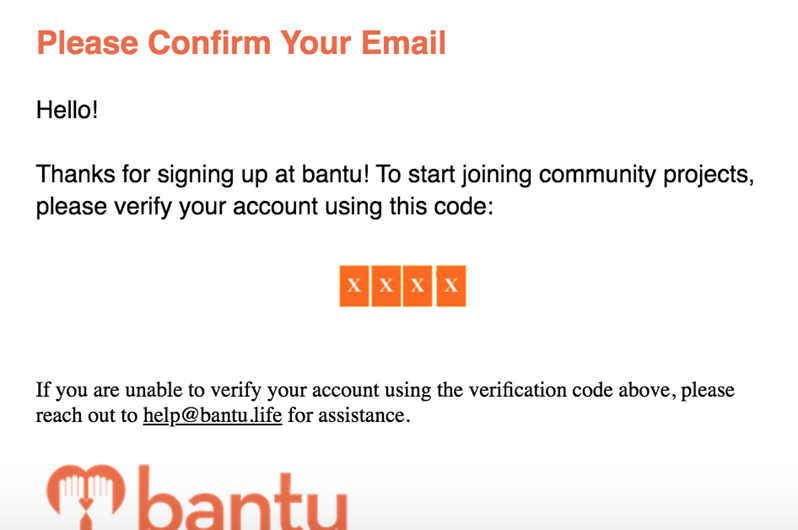
4. Check your email for verification
- You will receive an email containing the verification code, which looks like the one below:
Note: If you did not receive the verification code, please read this troubleshoot guide.
5. Copy the verification code and paste it in the field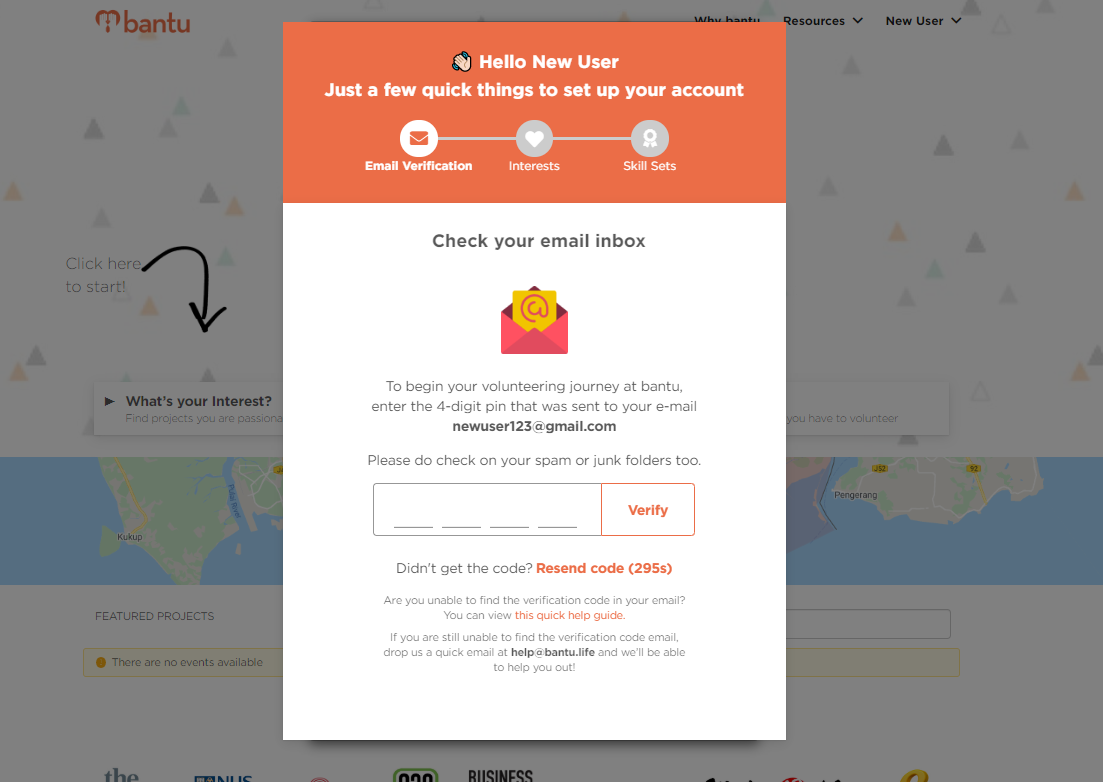
6. Once done, click 'Verify'
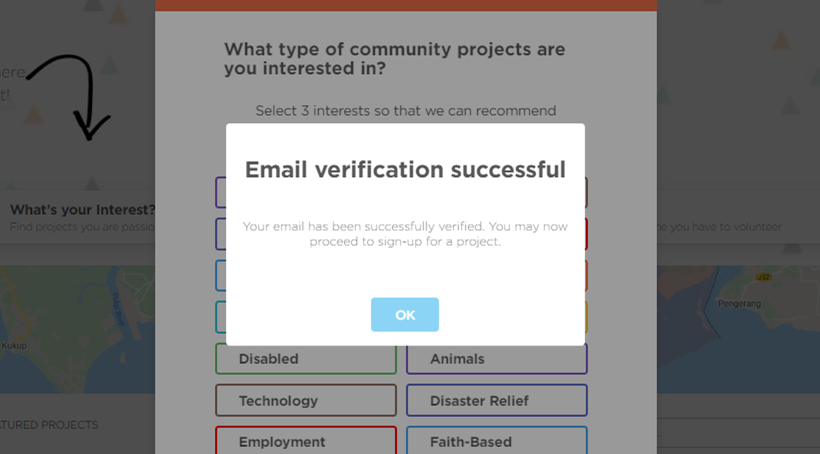
- There will be a pop-up indicating successful verification, like the one below:
7. Select areas of interests for projects
- This helps bantu to recommend you projects that you are interested in
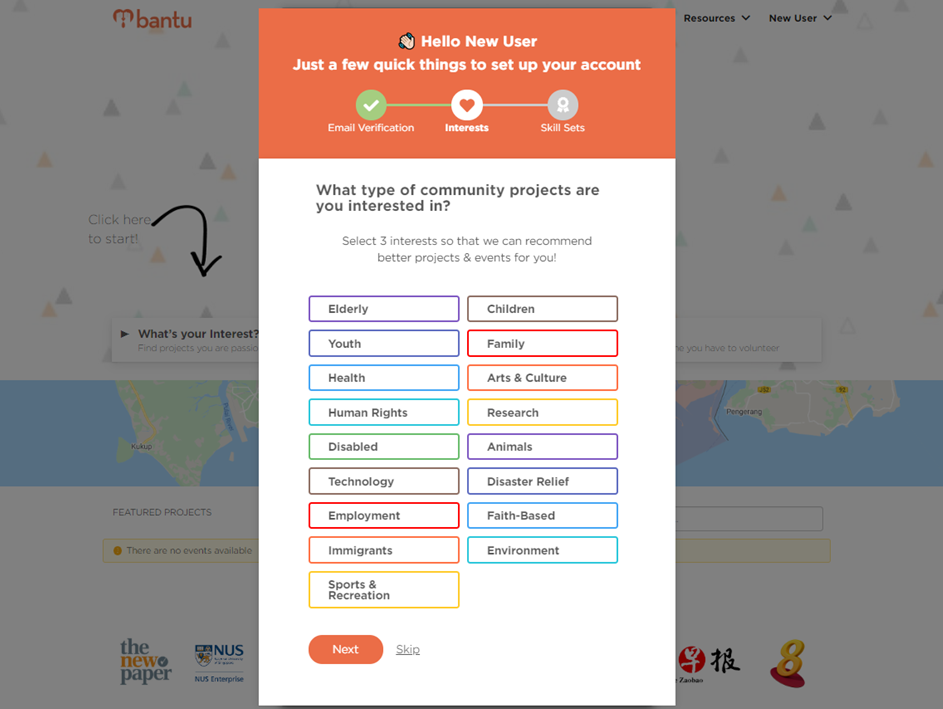
- Once done, click 'Next'
Tip: You can click 'Skip' to skip this first and return to 'Edit Section' in your profile later to make or change your selection.
8. Select skills that apply to you
- This helps bantu to do skill matching with project Organisers
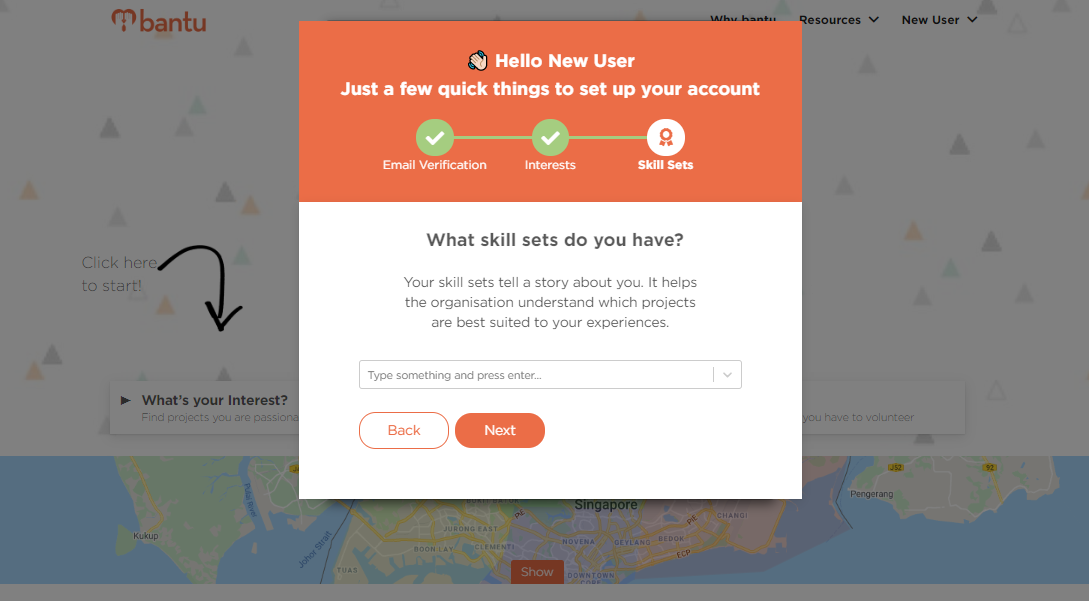
Tip: You can click 'Skip' to skip this first and return to 'Edit Section' in your profile later to make or change your selection.
8. Once done, click 'Next'
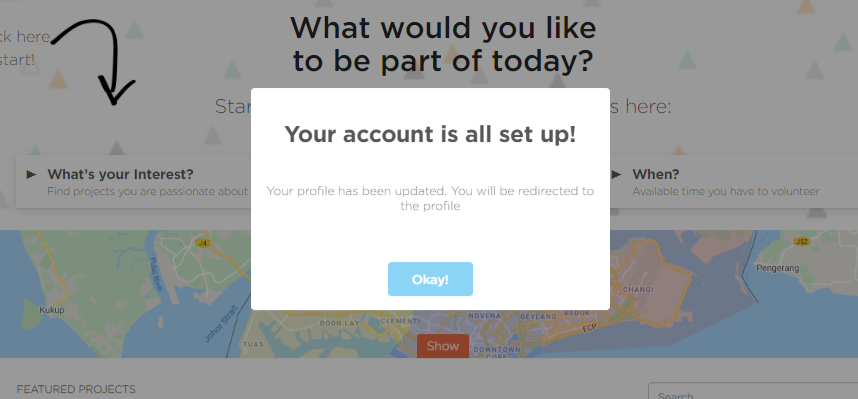
- There will be a pop-up indicating a successful signup, like the one below:
What’s Next?
After setting up your account, you can now edit your Community Portal profile.
> Learn how to sign up for a project
> Learn about the forms to fill each time you sign up for a new project
> Learn how to keep updated with new projects from an Organisation