
This feature works for:
Account: All accounts
Plan subscribed: All plans
Before you begin:
This action is particularly useful for organisers that have imported contacts into a new project.
Make sure you are only performing this action when you wish to add, remove, or edit timeslots of your participants in a particular project.
Instructions:
To assign an individual to a role and timeslot(s):
- Under "Manage Project", look for the participant to be assigned, and click on "edit".
- Click on the tab "Projects". This tab will show you all the projects that the participant has signed up for.
- Search for the name of the project. Once there:
- If you wish to assign a person to a new role, click on the drop-down menu, select a role, then click on "Assign Another Role".
- If you wish to assign new timeslots to a participant in a particular role, check or uncheck from the list of timeslots corresponding with that role.
- Once done, scroll all the way down and hit "Save".
- If you wish to assign a person to a new role, click on the drop-down menu, select a role, then click on "Assign Another Role".
To mass assign a group of people to a role and timeslot(s):
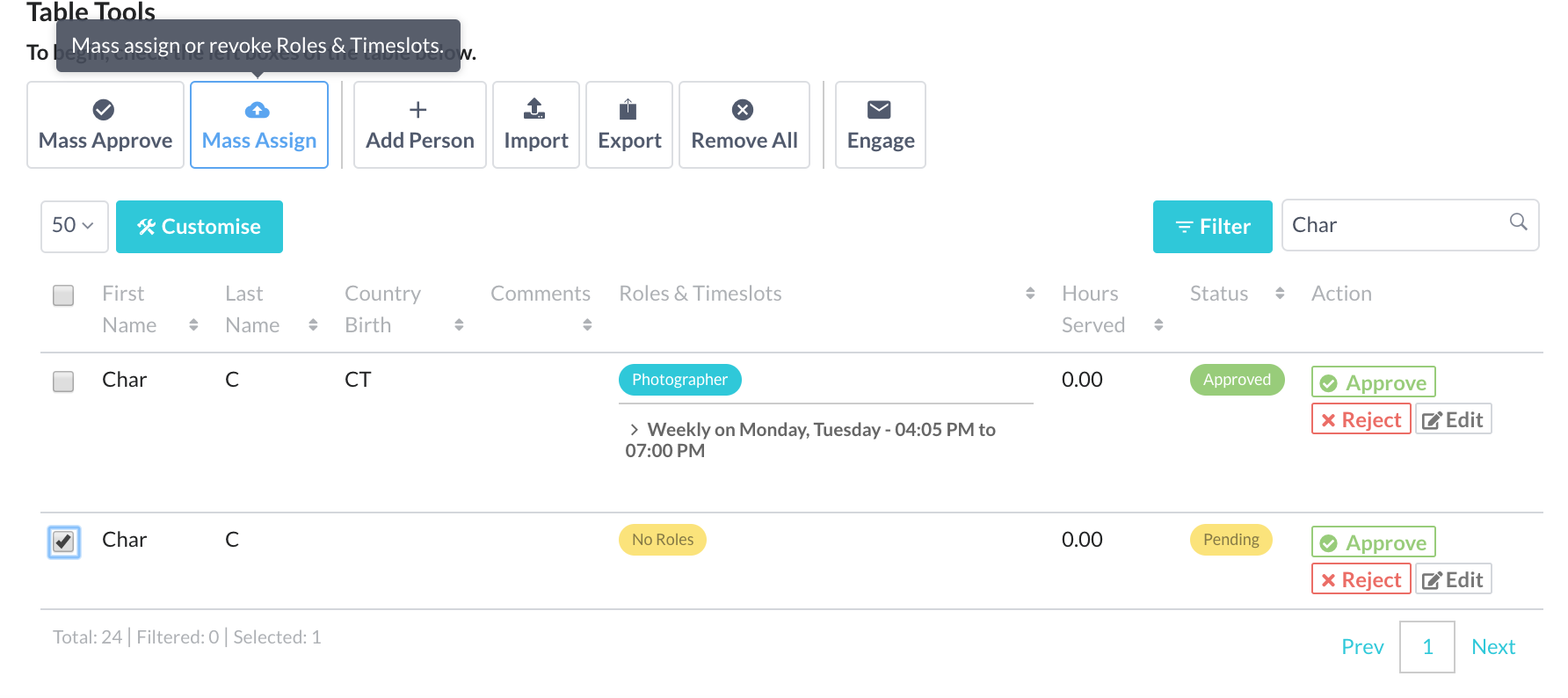
- Under "Manage Project", select the participants to be assigned. (Remember that you can use the filters to help you select multiple participants easily.)
- Under Table Tools, click on "Mass Assign".
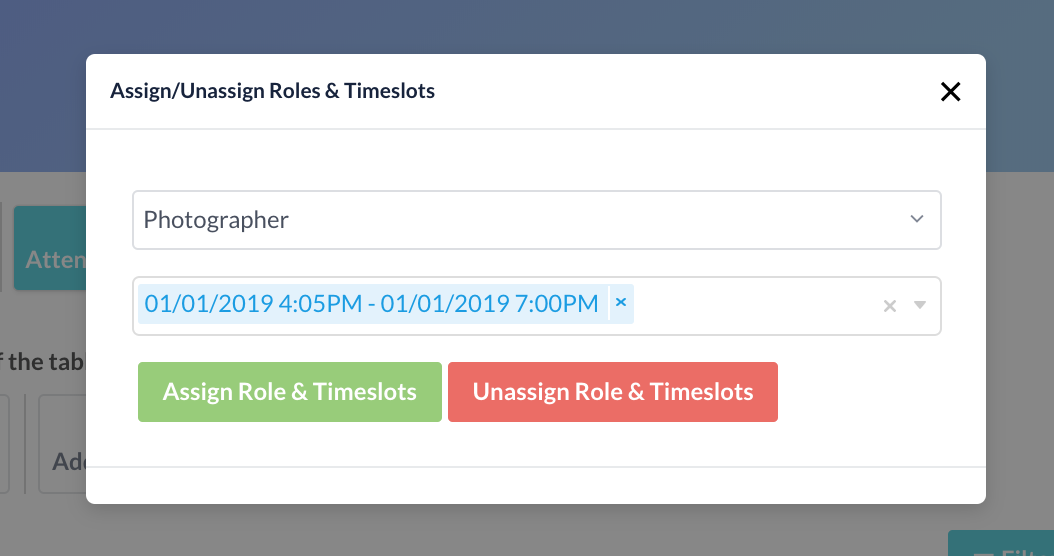
- Once you have selected a role, you can proceed to select multiple timeslots under that role.
- Click on "Assign Role and Timeslots".
- To assign another role with other timeslots, simply repeat the steps above.
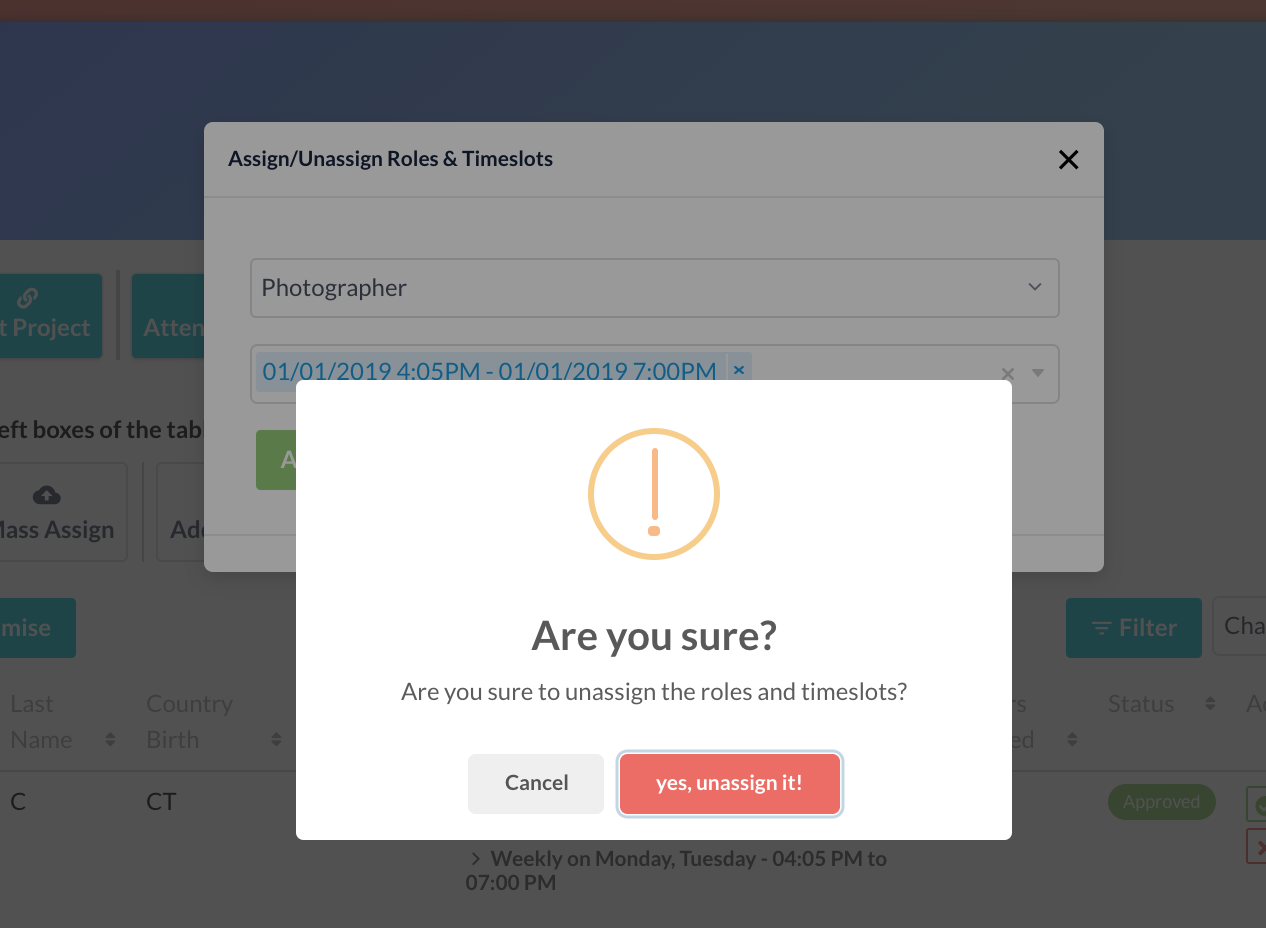
You can mirror the steps above to unassign participants from roles and timeslots as well.
What’s Next?
You should proceed to approve these people, and take their attendance on the day of each timeslot.